Generating 2D Game Sprite Sheets with AI: Full Workflow & Best Practices
Creating 2D game animations has traditionally been one of the most time-intensive bottlenecks in indie game development. Drawing an 8-frame walk cycle across four directions requires 32 distinct illustrations—and that is just for a single character in one armor set.
With the rise of generative AI image models and optical inbetweening systems, indie developers and solo creators can now draft, test, and iterate on character sprite sheets in a fraction of the time.
However, getting clean, usable results from AI requires more than just typing “make a pixel art walk cycle.” You need a structured pipeline to handle prompt consistency, grid alignment, color palette cohesion, and cleanup.
In this guide, we will break down the end-to-end workflow for generating 2D game sprite sheets using modern AI tools while keeping your art style unified and game-ready.
The Challenge of AI-Generated Sprite Sheets
If you have experimented with general AI image generators for sprites, you have likely encountered these common pitfalls:
- Style drift: Frame 1 has a blue cape, but frame 4 randomly gives the character a purple robe.
- Inconsistent proportions: Character heads or weapons mysteriously change size from one frame to the next.
- Messy grid alignments: Frames are scattered randomly across the canvas without uniform spacing, making slicing almost impossible.
- Muddy colors: Modern diffusion models naturally blend pixels, which ruins the sharp color palettes required for authentic retro pixel art.
To overcome these issues, professional game workflows combine targeted AI generation with post-processing slicing tools.
Step-by-Step AI Sprite Generation Workflow
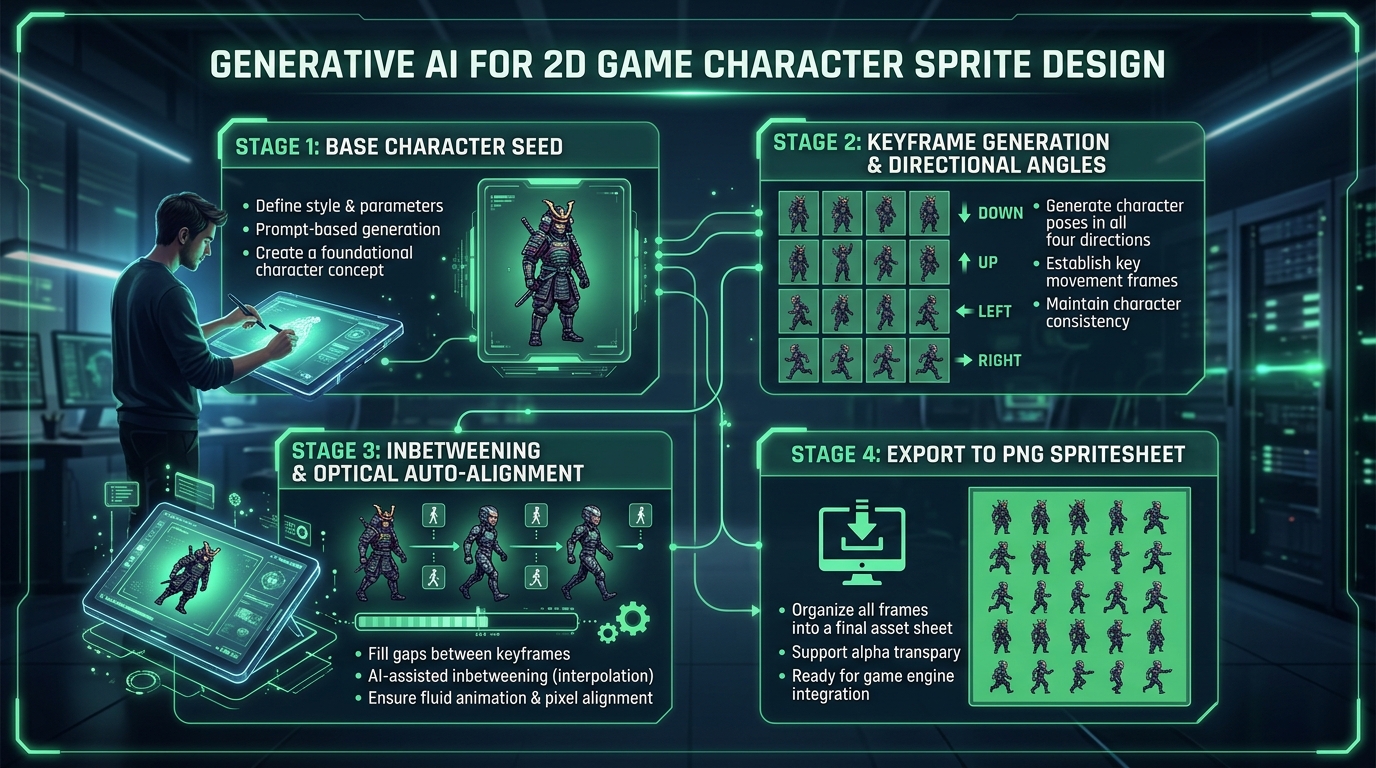
Here is the end-to-end pipeline used by modern indie studios to produce clean, game-ready animation sheets:
1. Anchor Your Base Character Concept First
Never ask an AI model to generate a full 16-frame animated sheet right out of the gate. Start by creating a single, definitive “Hero Pose” in an idle stance.
Once you have a base character design you love, save it as a visual reference. You will use this image as an Image-to-Image (img2img) or ControlNet input to ensure all subsequent animation frames inherit the exact same clothing colors, proportions, and lighting.
2. Generate Discrete Keyframes (Not Full Grids)
Instead of asking for a crowded grid, prompt the AI to produce isolated keyframe poses on a solid green or neutral gray background:
- Frame A: Contact pose (Left foot forward)
- Frame B: Passing pose (Legs aligned)
- Frame C: Contact pose (Right foot forward)
- Frame D: Passing pose (Opposite legs aligned)
Using fixed seeds and strong reference image conditioning ensures the character’s features stay locked in place across every pose.
3. Smooth Choppy Cycles with AI Frame Interpolation
Once you have your 4 primary keyframes, you can use our ai sprite sheet generator and frame interpolation tool to generate intermediate “in-between” frames automatically.
Optical flow and neural inbetweening analyze pixel velocity vectors between Frame A and Frame B, rendering natural transition frames that double your animation smoothness from 6 FPS up to a fluid 12 or 24 FPS.
4. Slice and Auto-Align the Grid
Import your generated frames into our spritesheet to gif converter. Use sub-pixel optical stabilization to center each frame along a grounded baseline. This eliminates the distracting up-and-down wobbling that often occurs with raw AI outputs.
5. Color Quantization and Cleanup
To maintain crisp pixel art aesthetics:
- Reduce the color palette to 16, 32, or 64 indexed colors to eliminate semi-transparent blur.
- Remove solid background keying colors using corner-sampling transparency detection.
- Export as a clean PNG texture atlas or preview as a looping animated GIF.
Best Practices for Prompting Sprite Art
When writing prompts for game sprites, specificity is your friend:
- Specify the camera angle clearly: Use terms like “isometric 2.5D view”, “top-down RPG perspective”, or “orthographic side-scroller view”.
- Define the outline style: Terms like “dark 1px outer contour”, “clean hard pixel edges”, or “vector flat color” prevent unwanted fuzzy gradients.
- Request neutral background separation: Always include “solid green screen background, high contrast, isolated on solid #00FF00” for frictionless background removal.
Ethical and Production Considerations
AI generation is best viewed as a powerful prototyping and ideation tool. While it can produce rapid walk cycles, enemy variations, and background props in minutes, having an artist refine the keyframes, add hand-tuned personality, and adjust weapon arcs ensures your final game feels distinct and intentional.
Ready to experiment with generative animation? Test out our browser-native ai sprite sheet animator to generate directional frames, stabilize motion loops, and export game-ready assets today.