How to Scale Pixel Art Sprite Sheets Without Blurring
Pixel art has a timeless, striking charm defined by deliberate, razor-sharp square pixels. But when you take a tiny 16x16 or 32x32 character sprite and blow it up to 4K resolution, share it on Twitter/X, or embed it on a modern high-DPI web page, disaster strikes:
Instead of crisp, chunky retro pixels, your art becomes a muddy, blurry smudge.
This happens because modern image scaling algorithms (like Bilinear and Bicubic filtering) are designed for photographic images—they deliberately blur colors across neighboring pixels to hide hard edges. For pixel art, however, hard edges are the entire point!
In this guide, we will explore the science of pixel art upscaling, compare interpolation algorithms, and show you how to export crisp, magnified sprites for the web, game engines, and social media.
The Core Concept: Nearest Neighbor vs. Bilinear Interpolation
When an image is enlarged from $32\text{px}$ to $320\text{px}$ ($10\times$ scale), the display must invent 100 pixels of data for every original single pixel. How the computer chooses those new pixel colors determines the final image quality.
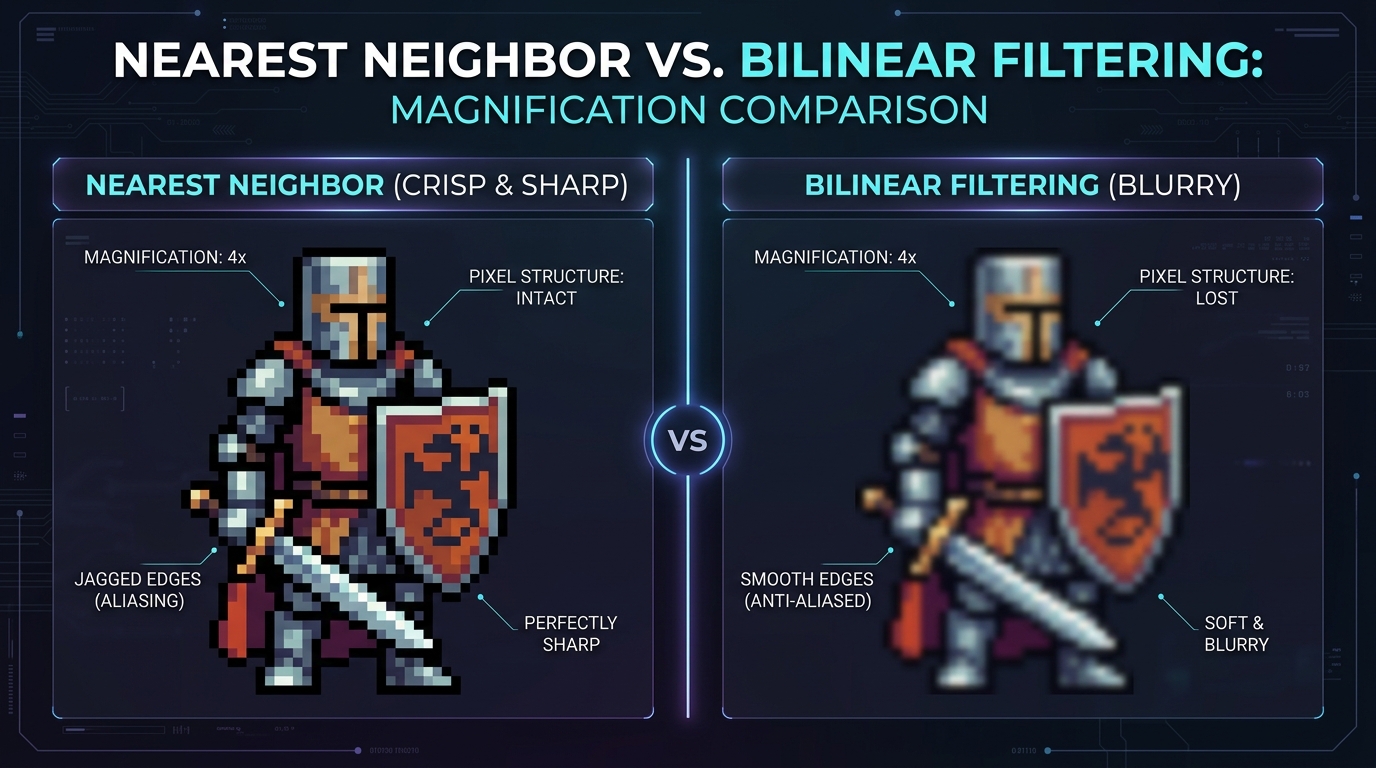
1. Nearest Neighbor Interpolation (The Golden Rule of Pixel Art)
Nearest Neighbor simply looks at the coordinate of the new scaled pixel and assigns it the exact color of the closest original source pixel. It creates clean, uniform square pixel blocks with zero color distortion and zero fuzziness.
2. Bilinear & Bicubic Filtering (For Photographs Only)
Bilinear filtering calculates an average blended color between neighboring pixels. While great for smoothing out wrinkles in photos, it completely destroys the crisp outlines and color palettes of 2D pixel art.
Integer Scaling: The Secret to Even Pixels
Even when using Nearest Neighbor scaling, scaling by non-integer factors (like $1.5\times$ or $2.7\times$) causes another common issue: uneven pixel widths (some pixels appear 2px wide while neighboring pixels appear 3px wide).
To keep all pixels perfectly square and balanced, always scale by whole integer multipliers:
- $16\text{px} \times 2 = 32\text{px}$ ($200%$)
- $16\text{px} \times 4 = 64\text{px}$ ($400%$)
- $16\text{px} \times 8 = 128\text{px}$ ($800%$)
- $16\text{px} \times 16 = 256\text{px}$ ($1600%$)
How to Scale Pixel Art for Different Media
1. For Web & CSS
If you are displaying native low-resolution sprite sheets in the browser, tell CSS to use nearest-neighbor sampling:
img.pixel-art,
canvas.pixel-art {
  image-rendering: pixelated;      /* Modern Chrome, Edge, Firefox */
  image-rendering: -moz-crisp-edges; /* Older Firefox */
  image-rendering: crisp-edges;
}
2. For Social Media (Twitter/X, Discord, Instagram)
Social platforms automatically compress and re-sample uploaded images using bilinear algorithms. If you upload a raw $32\times 32$ GIF, the social platform’s compression engine will blur it into an unrecognizable mess.
The Fix: Upscale your sprite sheet or GIF to at least $512\times 512\text{px}$ or $1024\times 1024\text{px}$ using integer nearest-neighbor scaling before uploading.
Our free spritesheet to gif converter includes built-in crisp integer scaling sliders ($2\times, 4\times, 8\times, 16\times$) so your exported GIFs look razor-sharp on every social platform.
Summary
Upscaling pixel art without blur comes down to two simple rules:
- Always use Nearest Neighbor filtering.
- Always scale using whole integer multipliers ($2\times, 4\times, 8\times, 16\times$).
Follow these guidelines and your retro game art and animations will remain crisp, vibrant, and authentic on any screen.