How to Fix Sprite Sheet Texture Bleeding and Frame Jitter
You have drawn your character frames, imported the sprite sheet into your game engine, and hit Play—only to notice something looks terribly wrong.
During motion, a thin ghost line from the neighboring frame flickers along your character’s edge, or the character vibrates vertically as if standing on a jackhammer.
These two visual glitches—texture bleeding and frame jitter—are among the most common technical headaches in 2D game development. Fortunately, both problems are rooted in predictable math and texture sampling behaviors, and both are easy to prevent once you know what causes them.
In this guide, we will break down why texture bleed and animation jitter happen, and the exact steps to fix them in Unity, Godot, Unreal, and web engines.
Issue 1: Understanding & Fixing Texture Bleeding
Why Texture Bleed Happens
Texture bleeding occurs when the graphics card samples texels (texture pixels) that sit slightly outside your defined sprite cell boundary.
This typically happens due to:
- Bilinear Filtering / Mipmapping: The GPU blends adjacent pixel colors together at sub-pixel coordinates or camera zoom levels.
- Floating-Point UV Coordinates: When your character moves at fractional speeds (like
x = 10.45px), the UV texture coordinate lands between texel centers, accidentally grabbing pixels from the adjacent frame.
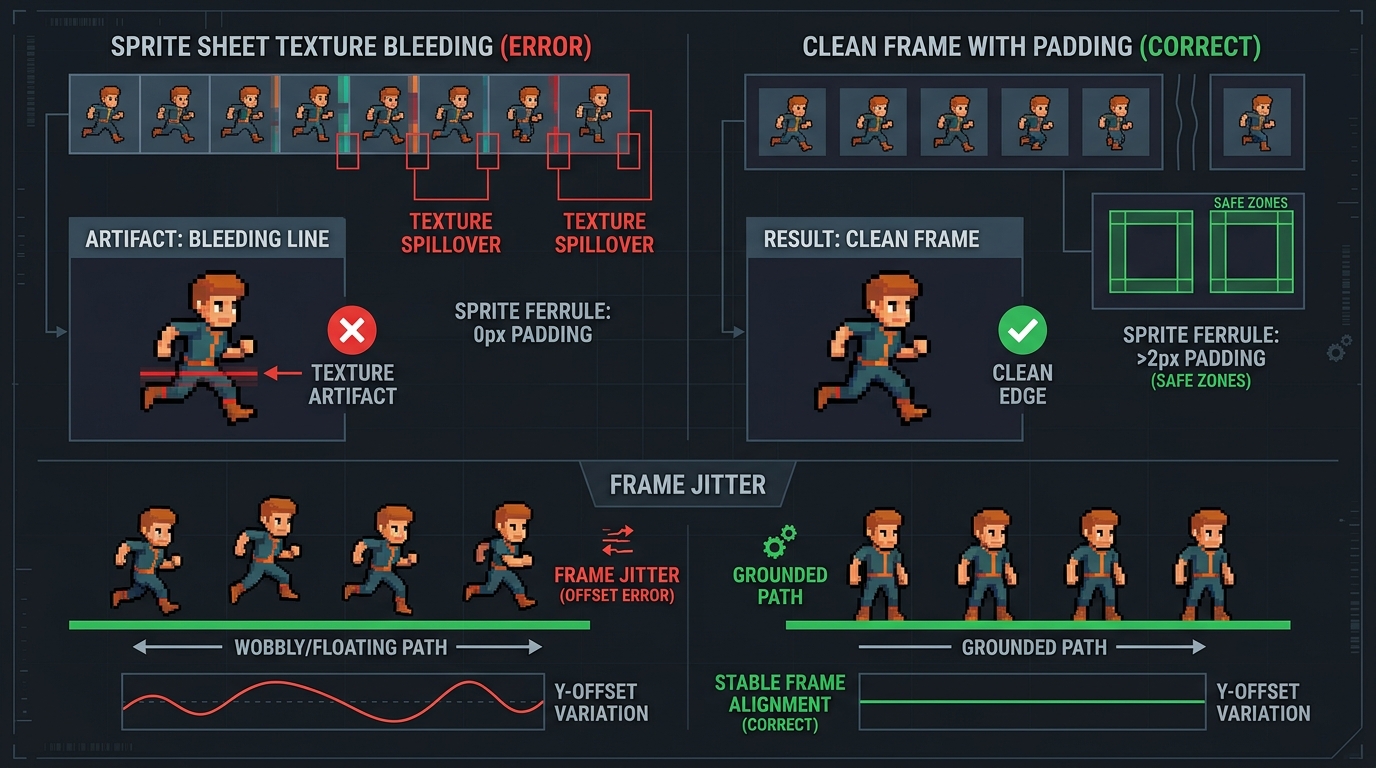
The Solutions:
- Add Transparent Gutters (Padding): Never pack frames edge-to-edge with 0px spacing if your camera zooms or uses fractional movement. Add a 1px or 2px transparent border between every cell in your sprite grid using a tool like our png to spritesheet generator.
- Texture Clamping / Point Filtering: In your game engine, set texture filtering to Point (Nearest Neighbor) and set texture wrap mode to Clamp instead of Repeat.
- Disable Mipmaps for 2D Sprites: Mipmaps generate lower-resolution downscaled copies of your texture for 3D distance rendering. In 2D games, downscaling a packed sprite sheet causes adjacent frames to bleed together severely. Always uncheck Generate Mipmaps on 2D sprite textures.
Issue 2: Understanding & Fixing Frame Jitter (Wobble)
Why Frame Jitter Happens
Animation jitter occurs when individual frames in an animation sequence are not anchored to a consistent spatial baseline.
For example, if Frame 1 has 4 pixels of empty space below the character’s feet, but Frame 2 has 2 pixels of empty space, the entire character will appear to jump up and down 2 pixels every time the frame changes.
This offset mismatch causes the character sprite to bob up and down rapidly, creating a wobbly animation.
The Solutions:
- Sub-Pixel Optical Auto-Alignment: Instead of manually measuring pixel offsets in Photoshop, use Sprite2GIF’s automated optical alignment tool. It calculates the non-transparent alpha bounding box of each frame and aligns all feet coordinates to a fixed baseline automatically.
- Consistent Pivot Anchoring: In your game engine (Unity Sprite Editor or Godot SpriteFrames), set your sprite pivot point to Bottom-Center (ground contact) rather than Center. Grounding character pivots at the feet ensures natural movement during running and jumping.
- Integer Pixel Snapping (Pixel-Perfect Cameras): If your game uses low-resolution retro graphics, enable Pixel Snap or use a dedicated Pixel Perfect Camera component to ensure characters and cameras only render at whole integer pixel coordinates.
Summary Checklist Before Exporting
Before shipping your sprite sheets to production, run through this quick checklist:
- Added 1–2px transparent padding around every frame cell.
- Disabled mipmap generation on texture import.
- Set texture filtering to Point / Nearest Neighbor for pixel art.
- Anchored all walk/run frames to a uniform Bottom-Center baseline.
- Verified smooth playback in our free spritesheet to gif converter.