Loading and Playing Sprite Sheet Animations in Phaser 3
Phaser 3 is the undisputed leader for building high-performance HTML5 2D games for modern browsers and mobile webviews. Whether you are crafting a web-based roguelike, an educational mini-game, or an interactive canvas experience, loading and playing sprite sheets is the backbone of your visual engine.
In this tutorial, we will break down exactly how Phaser 3 handles sprite sheets: from the initial preload() asset loader, to defining reusable global animations in the create() method, to triggering dynamic state changes in your game loop.
How Phaser 3 Understands Sprite Sheets
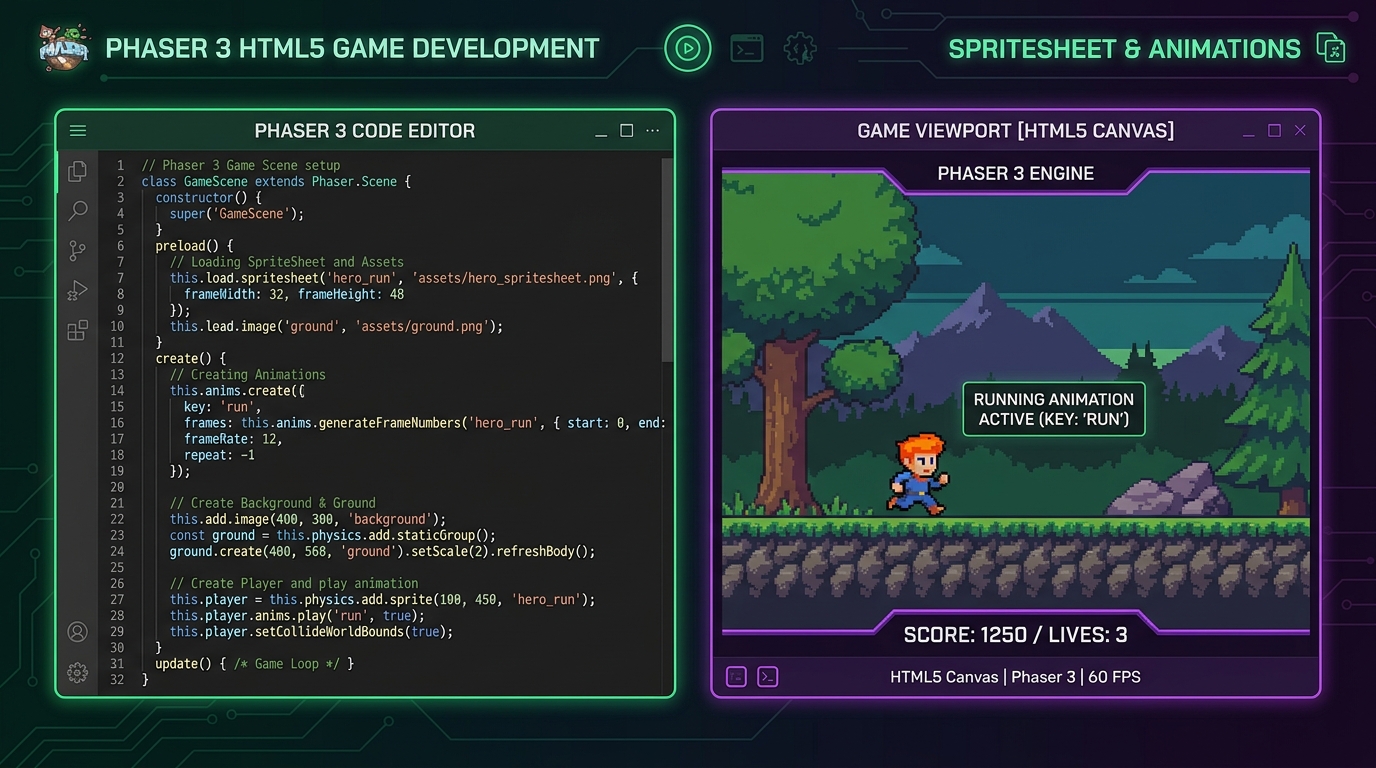
When you load a static image in Phaser, you use this.load.image(). But when loading a sprite sheet where individual animation cells share uniform dimensions, you use this.load.spritesheet().
Phaser automatically slices the image by calculating bounding boxes from the frameWidth and frameHeight parameters you provide, indexing frames sequentially starting from index 0.
[ Sprite Sheet Grid: 32x32 per frame ]
Step 1: Preload Your Sprite Sheet
Inside your Phaser Scene’s preload() function, load your texture asset:
class GameScene extends Phaser.Scene {
  constructor() {
    super({ key: 'GameScene' });
  }

  preload() {
    // Load the character sprite sheet (e.g., 32x32 pixels per frame)
    this.load.spritesheet('player', 'assets/sprites/player_sheet.png', {
      frameWidth: 32,
      frameHeight: 32,
      margin: 0,   // Optional: offset from the top-left edge
      spacing: 0   // Optional: padding between each frame
    });
  }
Step 2: Define Animations in the Animation Manager
Animations in Phaser 3 are managed globally by the Animation Manager (this.anims). Once you create an animation key, any sprite instance in your game can play it.
Inside your create() method:
  create() {
    // 1. Create the Walk Animation
    this.anims.create({
      key: 'walk',
      // Generate frames automatically from index 0 to 5
      frames: this.anims.generateFrameNumbers('player', { start: 0, end: 5 }),
      frameRate: 10,   // 10 frames per second
      repeat: -1       // -1 means loop indefinitely
    });

    // 2. Create an Idle Animation (Frames 6 to 7)
    this.anims.create({
      key: 'idle',
      frames: this.anims.generateFrameNumbers('player', { start: 6, end: 7 }),
      frameRate: 4,
      repeat: -1
    });

    // 3. Create a One-Shot Attack Animation (Frames 8 to 11)
    this.anims.create({
      key: 'attack',
      frames: this.anims.generateFrameNumbers('player', { start: 8, end: 11 }),
      frameRate: 12,
      repeat: 0        // 0 means play once and stop
    });

    // 4. Instantiate the player sprite at coordinates (X: 400, Y: 300)
    this.player = this.physics.add.sprite(400, 300, 'player');
    this.player.play('idle');
  }
Step 3: Trigger Playback in the Update Loop
To make your player responsive to keyboard inputs, trigger animations inside the update() loop:
  update() {
    const cursors = this.input.keyboard.createCursorKeys();

    if (cursors.left.isDown) {
      this.player.setVelocityX(-160);
      this.player.setFlipX(true); // Flip sprite horizontally
      this.player.play('walk', true); // 'true' ignores call if already playing
    } else if (cursors.right.isDown) {
      this.player.setVelocityX(160);
      this.player.setFlipX(false);
      this.player.play('walk', true);
    } else {
      this.player.setVelocityX(0);
      this.player.play('idle', true);
    }
  }
}
Pro Tip: Managing Sharp Pixel Art in Phaser 3
If your game uses low-resolution retro pixel art, ensure your global Phaser game configuration disables anti-aliasing so sprites do not look blurred when scaled:
const config = {
  type: Phaser.AUTO,
  width: 800,
  height: 600,
  pixelArt: true, // Automatically sets nearest-neighbor canvas filtering
  scene: [GameScene]
};
Summary
Phaser 3 makes rendering and controlling multi-frame sprite sheets clean and performant. By combining this.load.spritesheet(), the global Animation Manager, and keyboard listeners, you can build responsive 2D browser games in no time.
(Pro Tip: Need to verify your sprite sheet frame numbers or convert loose PNGs before coding? Use our free spritesheet to gif converter and png to spritesheet generator).