Unreal Engine Paper2D: Converting Sprite Sheets into Flipbooks
While Unreal Engine is world-renowned for photorealistic 3D rendering and cutting-edge Nanite geometry, its built-in Paper2D plugin provides a robust, hardware-accelerated toolset for building 2D side-scrollers, pixel art RPGs, and retro action games.
In Paper2D, traditional sprite sheet animations are represented as Paper Flipbooks—sequences of textured 2D sprite assets played back along a customizable timeline.
In this guide, we will walk through the entire Paper2D workflow: importing texture atlases, configuring unlit 2D texture settings, slicing individual sprites, and building reusable Flipbook animations.
Understanding Paper2D Core Assets
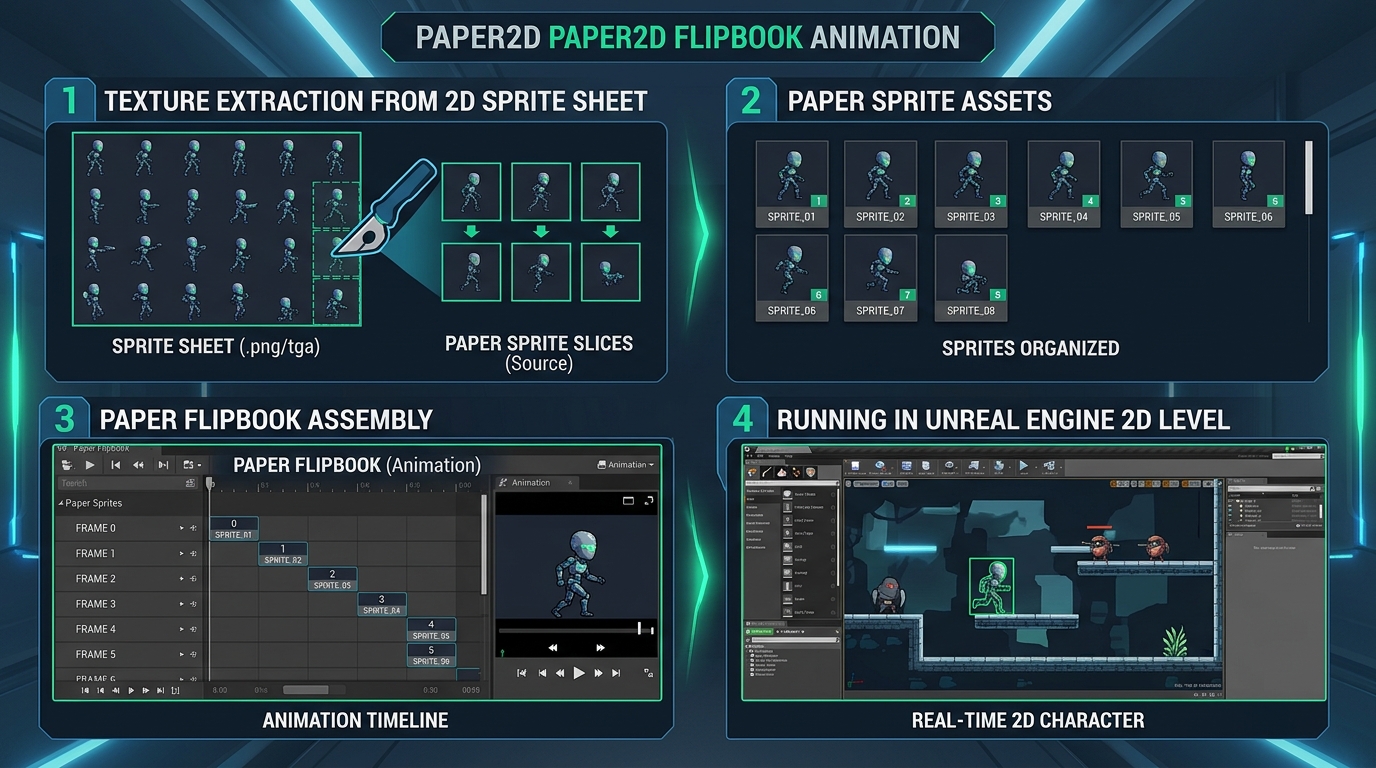
To work effectively in Paper2D, it helps to understand how Unreal organizes 2D graphics:
- Texture2D: The raw imported image file (e.g., your character’s
.pngsprite sheet). - Paper Sprite: A 2D render asset defining a specific cropped rectangle and collision geometry extracted from a Texture2D.
- Paper Flipbook: A sequential series of Paper Sprites played back at a designated frame rate (comparable to an animated GIF or Unity Animation Clip).
[ Raw Texture (.png) ] [ Paper Sprite Slices ] [ Paper Flipbook (Animation) ]
Step 1: Import and Apply 2D Pixel Settings
- Enable the Paper2D plugin (enabled by default in modern Unreal Engine versions).
- Drag your sprite sheet PNG into the Content Browser.
- Right-click the imported texture and select Sprite Actions > Configure for Retro / Pixel Art.
- This single command automatically sets the texture filter to
Point (nearest-neighbor), changes the compression setting toUserInterface2D / Masked, and disables mipmaps to ensure your pixels stay razor-sharp.
- This single command automatically sets the texture filter to
Step 2: Extract Sprites from the Texture Sheet
- Right-click your configured texture in the Content Browser.
- Select Sprite Actions > Extract Sprites.
- In the Sprite Extraction dialog:
- Extraction Mode: Choose
Grid(orAutoif frames are non-uniform with transparent margins). - Set the Cell Width and Cell Height in pixels to match your sprite grid (e.g., 64x64).
- Verify that the blue grid lines perfectly frame your character poses.
- Extraction Mode: Choose
- Click Extract. Unreal will generate a folder containing individual Paper Sprite assets for every cell.
Step 3: Create the Paper Flipbook Animation
- In the Content Browser, select the extracted Paper Sprites that belong to an animation sequence (e.g.,
Sprite_0throughSprite_5). - Right-click the selected group and choose Create Flipbook.
- Name your new Flipbook asset (for example,
FB_Player_Run). - Double-click the Flipbook to open the Flipbook Editor.
- In the Details panel, adjust the Frames Per Second (e.g., set to
12.0or15.0) to dial in the animation speed. - You can rearrange frame order or duplicate specific frames to create custom pauses and anticipation frames directly on the timeline.
Step 4: Adding the Flipbook to a 2D Character Pawn
To render the Flipbook in your 2D game:
- Open your 2D Character Blueprint (inheriting from
PaperCharacter). - Select the RenderComponent (Sprite) in the Components tab.
- In the Details panel, assign your newly created Flipbook (
FB_Player_Run) to the Source Flipbook field. - Use Blueprint logic to switch Flipbooks dynamically based on character velocity (e.g., playing
FB_Player_Idlewhen velocity is zero, andFB_Player_Runwhen moving).
Summary
Unreal Engine’s Paper2D toolset offers an extremely clean pipeline for turning flat texture grids into responsive, physics-ready 2D game animations. By mastering texture extraction and Flipbook construction, you can build visually stunning 2D experiences inside Unreal’s industry-leading engine.
(Pro Tip: Need to clean up texture padding or test your frame loops before importing into Unreal? Use our spritesheet to gif converter and png to spritesheet packer).